
Embedded Card Checkout
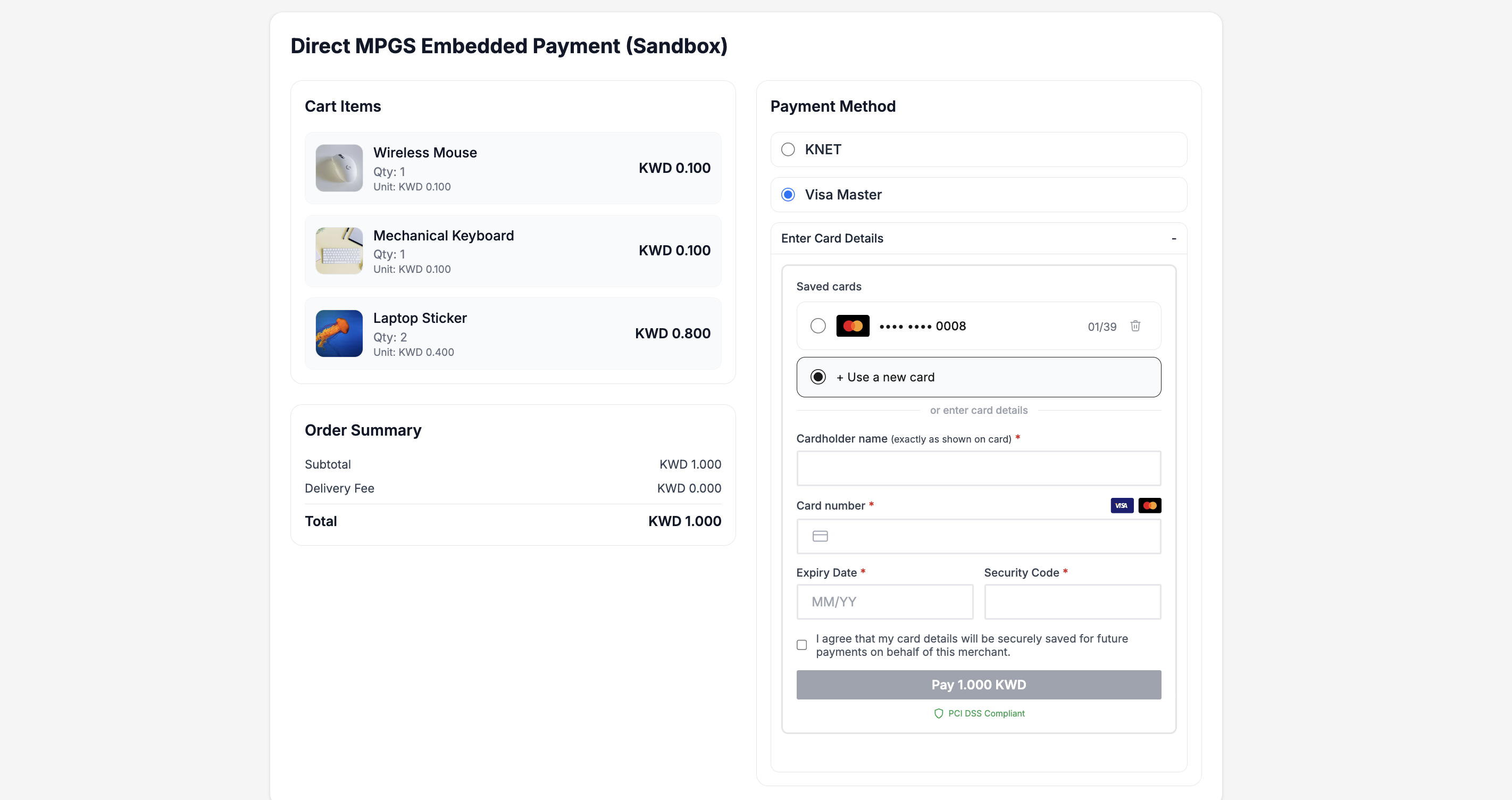
Hesabe Direct Payment lets you embed a secure, hosted payment form on your website without handling card data directly. Card information is entered inside an iframe served from Hesabe's domain, keeping your integration PCI-compliant
A full mock storefront showing the embedded card form inside a real shopping flow.
A minimal developer-focused playground to test and inspect the checkout SDK.
Prerequisites
- You have a Hesabe merchant account with direct payment (MPGS) enabled.
- Your website domain has been registered with Hesabe for iframe embedding (Web Checkout only).
- Your backend can call the Hesabe Checkout API to obtain a payment data token.
Domain Registration Required for Embedded Web Checkout
How It Works
Frontend: POST /checkout
response.data
encrypted payload
Frontend loads payment.js SDK
HesabeDirectPayment.init({ data })
Renders iframe payment form
Customer fills card details
Card data stays on Hesabe
onSuccess(token) or onError(error)
Backend verifies token via Hesabe API
The data passed to the SDK is the encrypted payload from the Checkout API (response.data). The raw payment token is never exposed in the browser.
Quick Start
Verify your web domain
Domain Registration Required for Embedded Web Checkout
Include the SDK Script
Add the Hesabe SDK script to your checkout page:
Sandbox
Below JS Script strictly for sandbox testing only. Never use these sandbox URLs in production.
Production
Use the following Checkout API strictly for production transactions.
Create a Container Element
Add a div where the payment iframe will be mounted:
<div id="payment-container"></div>Obtain Encrypted Payment Data from Your Backend
Call the Hesabe Checkout API from your server and use the response.data field — not the top-level token — and pass it to your frontend.
{
  "status": true,
  "token": "...",
  "response": {
    "data": "<encrypted_payload>"
  }
}
Always pass response.data (the encrypted payload) to the SDK — never the top-level token.
Initialize the SDK
Sandbox
Below JS Script strictly for sandbox testing only. Never use these sandbox URLs in production.
Production
Use the following Checkout API strictly for production transactions.
<script>
  var payment = HesabeDirectPayment.init({
    container: '#payment-container',
    data: 'ENCRYPTED_DATA_FROM_CHECKOUT_API',
    onSuccess: function (result) {
      console.log('Payment successful', result.token);
    },
    onError: function (error) {
      console.error('Payment failed:', error.message);
    },
    onCancel: function () {
      console.log('Payment cancelled by user');
    }
  });
</script>
API Reference
HesabeDirectPayment.init(options)
Mounts the payment iframe into the specified container and returns a handle.
Returns: { destroy() } — call destroy() to remove the iframe and clean up listeners.
Options
| Parameter | Type | Required | Default | Description |
|---|---|---|---|---|
container | string | Element | Yes | — | CSS selector (e.g. '#pay-box') or a DOM element where the iframe will be mounted. |
data | string | Yes | — | Encrypted payment data from the Hesabe Checkout API (response.data field). |
environment | string | No | 'production' | Target environment. Accepted values: 'production', 'staging', 'local'. Use 'staging' for sandbox testing. |
locale | string | No | 'en' | UI language. Accepted values: 'en' (English), 'ar' (Arabic / RTL). |
styles | object | No | Hesabe defaults | Visual customization. See Style Options below. |
onSuccess | function(result) | No | Redirect to Hesabe response URL | Called when payment is completed successfully. |
onError | function(error) | No | Redirect to Hesabe response URL | Called when payment fails or is declined. |
onCancel | function() | No | — | Called when the user cancels the 3DS authentication step. |
If onSuccess or onError are not provided, the SDK automatically redirects the page to the Hesabe response URL returned by the gateway.
Style Options
Pass any of these inside the styles object to customize the appearance of the payment form.
| Property | Type | Default | Description |
|---|---|---|---|
primaryColor | string (CSS color) | #1a73e8 | Accent color used for focus rings and highlights. |
buttonColor | string (CSS color) | #1a73e8 | Background color of the Pay button. |
buttonHoverColor | string (CSS color) | #1557b0 | Background color of the Pay button on hover. |
buttonTextColor | string (CSS color) | #ffffff | Text color of the Pay button. |
fontFamily | string (CSS font stack) | Inter, sans-serif | Font family for the entire form. Accepts any system font or Google Font name. Google Fonts are loaded automatically — no <link> tag needed. |
borderRadius | string (CSS value) | 8px | Border radius applied to input fields and the Pay button. |
inputBorderColor | string (CSS color) | #d1d5db | Border color of card input fields. |
errorColor | string (CSS color) | #dc2626 | Color used for validation error messages. |
Example:
HesabeDirectPayment.init({
  container: '#payment-container',
  data: paymentData,
  styles: {
    buttonColor: '#0f766e',
    buttonHoverColor: '#115e59',
    buttonTextColor: '#ffffff',
    primaryColor: '#0f766e',
    fontFamily: 'Poppins, sans-serif',
    borderRadius: '4px',
    inputBorderColor: '#94a3b8',
    errorColor: '#e11d48',
  },
  onSuccess: function (result) { /* ... */ }
});
Using Google Fonts
The SDK automatically loads any Google Font — no <link> tag needed on your page. Simply pass the font name as the fontFamily style option.
HesabeDirectPayment.init({
  container: '#payment-container',
  data: paymentData,
  styles: {
    fontFamily: 'Poppins, sans-serif',
  },
  onSuccess: function (result) { /* ... */ }
});
The font name must match the exact name listed on Google Fonts. Always include a fallback generic family (sans-serif, serif, etc.) after the font name.
Popular examples:
| Font | fontFamily value | Notes |
|---|---|---|
| Poppins | 'Poppins, sans-serif' | Modern geometric, great for UI |
| Inter | 'Inter, sans-serif' | Clean, highly legible |
| Roboto | 'Roboto, sans-serif' | Material Design default |
| Lato | 'Lato, sans-serif' | Friendly and readable |
| Cairo | 'Cairo, sans-serif' | Supports Arabic script |
| Tajawal | 'Tajawal, sans-serif' | Arabic-first, also supports Latin |
| Noto Sans | 'Noto Sans, sans-serif' | Wide language coverage |
System fonts (Arial, Helvetica, Georgia, Verdana, etc.) work without any loading — just pass them directly and no network request is made.
Callbacks
onSuccess(result)
Fired after the payment is authorized or captured.
| Field | Type | Description |
|---|---|---|
result.token | string | The payment token that was processed. Use this to verify the payment status from your backend. |
onSuccess: function (result) {
  fetch('/your-backend/verify', {
    method: 'POST',
    body: JSON.stringify({ token: result.token })
  });
}
onError(error)
Fired when the payment is declined or an error occurs.
| Field | Type | Description |
|---|---|---|
error.message | string | Human-readable error description. |
error.code | string | number | Error code returned by the payment gateway (may be undefined). |
onError: function (error) {
  alert('Payment failed: ' + error.message);
}
onCancel()
Fired when the user dismisses the 3D Secure authentication popup without completing it.
onCancel: function () {
  console.log('User cancelled authentication');
}
destroy()
Removes the iframe from the DOM and detaches all internal event listeners. Call this when navigating away or if you need to re-mount the form.
var payment = HesabeDirectPayment.init({ /* ... */ });

// Later:
payment.destroy();
Environments
environment value | URL | Use for |
|---|---|---|
'production' (default) | https://api.hesabe.com | Live payments |
'staging' | https://sandbox.hesabe.com | Testing and integration |
'local' | http://127.0.0.1:8000 | Local development |
HesabeDirectPayment.init({
  container: '#payment-container',
  data: paymentData,
  environment: 'staging',
  onSuccess: function (result) { /* ... */ }
});
Arabic / RTL Support
Set locale: 'ar' to switch the form to Arabic with right-to-left layout:
HesabeDirectPayment.init({
  container: '#payment-container',
  data: paymentData,
  locale: 'ar',
  styles: {
    fontFamily: 'Cairo, sans-serif',
  },
  onSuccess: function (result) { /* ... */ }
});
Complete Example
Sandbox
Below JS Script strictly for sandbox testing only. Never use these sandbox URLs in production.
Production
Use the following Checkout API strictly for production transactions.
<!DOCTYPE html>
<html lang="en">
<head>
  <meta charset="UTF-8">
  <title>Checkout</title>
</head>
<body>

  <h2>Complete Your Payment</h2>
  <div id="payment-container"></div>


  <script>
    // Pass response.data from your backend Checkout API call (encrypted payload)
    var paymentData = '{{ $checkoutResponse["response"]["data"] }}';

    var payment = HesabeDirectPayment.init({
      container: '#payment-container',
      data: paymentData,
      environment: 'production',
      locale: 'en',
      styles: {
        buttonColor: '#2563eb',
        buttonHoverColor: '#1d4ed8',
        fontFamily: 'Inter, sans-serif',
        borderRadius: '6px',
      },
      onSuccess: function (result) {
        window.location.href = '/order/confirmation?token=' + result.token;
      },
      onError: function (error) {
        document.getElementById('error-msg').textContent = error.message;
      },
      onCancel: function () {
        document.getElementById('error-msg').textContent = 'Authentication was cancelled. Please try again.';
      }
    });
  </script>

  <p id="error-msg" style="color:red;margin-top:12px;"></p>

</body>
</html>Security Notes
- Card data never touches your server. All card input is handled inside an iframe on Hesabe's domain.
- Raw token is never exposed in the browser. The SDK and WebView URL both use an encrypted payload (
response.data). Even if the URL is logged or intercepted, the token cannot be read without Hesabe's server-side key. - Domain allowlisting is enforced server-side (web only). The iframe will only load when the parent page's domain is registered with Hesabe. Requests from unregistered domains receive a
403response. Mobile WebView integration is exempt from domain checks. - Always verify payment server-side. The
onSuccesscallback confirms the frontend flow completed — always cross-check the payment status via the Hesabe API from your backend before fulfilling an order. - Use HTTPS in production. The SDK requires the merchant page to be served over HTTPS in production environments.
Troubleshooting
| Symptom | Likely cause | Fix |
|---|---|---|
| Iframe shows "Website Not Authorized" | Domain not registered with Hesabe | Contact itsupport@hesabe.com to add your domain |
HesabeDirectPayment is not defined | SDK script not loaded | Ensure the <script> tag for payment.js is included before your init code |
container element not found | Selector doesn't match any element | Verify the container value matches an existing element; run init after DOM is ready |
data (payment token) is required | data option missing or empty | Pass the response.data field (encrypted payload) from your Checkout API response — not the top-level token |
| Form renders but pay button does nothing | Token already used or expired | Generate a fresh token from the Checkout API |
| WebView shows "Invalid Request" | Wrong data value passed in URL | Ensure you pass response.data from the checkout response, not the raw token |
| WebView URL not returned in response | channel: 'mobile' not sent | Add "channel": "mobile" to your Checkout API request body |
| Custom font not applying | Font name typo | Check the spelling matches exactly the Google Fonts name (e.g. 'Poppins' not 'poppins') |
| Payment form loads on staging but not production | Wrong environment value | Ensure environment: 'production' (or omit it) for live payments |
Support
For integration support or to register your domain:
Hesabe IT Support
Saved Card Payments
Direct Payments & Saved Cards (Embedded) allow users to complete payments directly within your app or website without redirection, ensuring a seamless checkout experience. It also enables secure storage of card details via tokenization, allowing faster and convenient repeat transactions.
Subscription Method
The Subscription Method allows merchants to set up and manage recurring payments seamlessly. It ensures automatic billing at regular intervals, reducing manual effort and improving payment consistency.